
Stop Copy-Pasting: How to Automate Data from PDFs to Excel (or Your CRM)
Table of Contents
- The Automation Technology Stack
- Understanding Your Document Landscape and Tool Selection
- Configuring Your Automation Workflow
- Validating and Refining the Extraction Engine
- High-Impact Business Use Cases
- Partnering for Seamless Enterprise Integration
- Transform your data workflow – start automating today!
- Show all
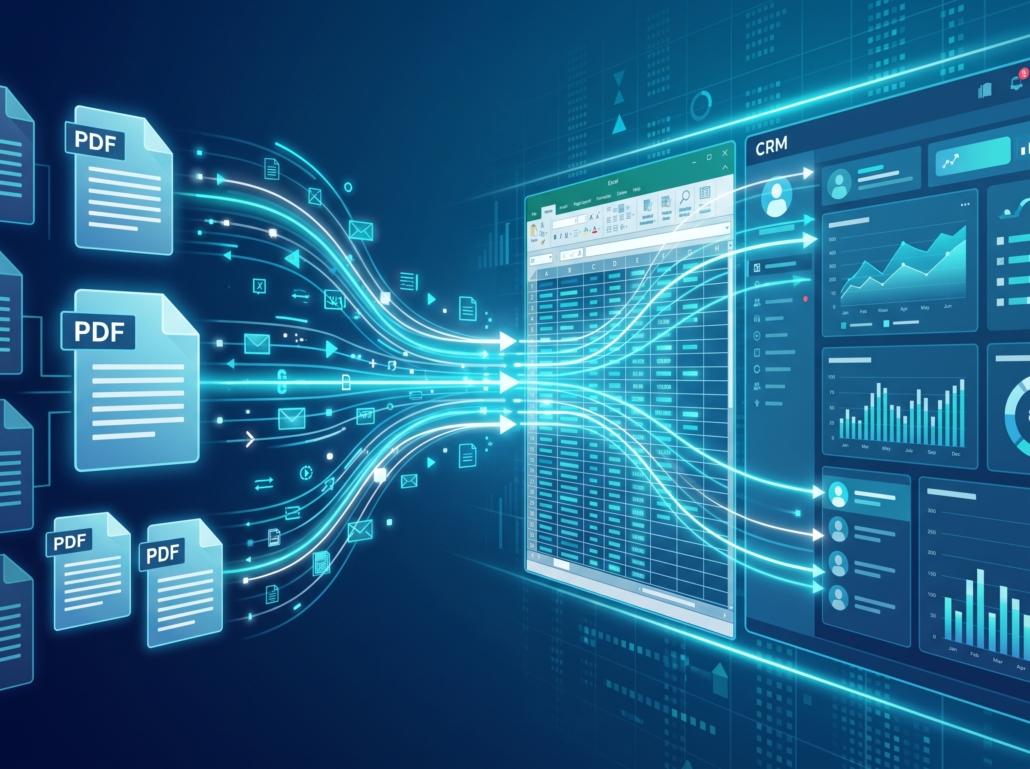
Every day, countless highly skilled employees are reduced to performing one of the most soul-crushing tasks in the modern corporate world: manually copying data from PDF documents and pasting it into Excel spreadsheets or Customer Relationship Management (CRM) systems. This relentless copy-paste cycle is not just demoralizing; it is a massive drain on operational efficiency and a primary vector for costly human error. In an era where artificial intelligence and advanced scripting can handle complex data extraction in seconds, relying on manual data entry is a significant competitive disadvantage.
If your business processes hundreds of invoices, purchase orders, client intake forms, or shipping manifests each month, the financial toll of manual extraction is staggering. An employee spending just ten hours a week manually transcribing data at a loaded cost of €30 per hour costs your business over €15,000 annually—for a single individual. Multiply this across a department, and you are bleeding capital on a task that machines can execute with near-perfect accuracy. It is time to stop the manual grind. This guide will walk you through exactly how to automate PDF to Excel and CRM workflows, transforming unstructured documents into actionable business intelligence.
The Automation Technology Stack
Before building an extraction workflow, you must assemble the right tools for the job. The ecosystem of data extraction software is vast, but it generally breaks down into a few core categories. Choosing the right combination depends entirely on the volume and complexity of the documents you process daily.
At the foundation, you must understand the nature of your PDFs. A “digital-native” or structured PDF is generated directly from software (like an invoice exported from an accounting platform). The text in these files is embedded and easily readable by simple scripts. Conversely, a scanned PDF is essentially a flat image of a document. A computer cannot inherently read the text on a scanned image; it requires a specialized layer of software to translate the pixels back into characters.
To bridge this gap, your technology stack will likely include Optical Character Recognition (OCR) applications. Industry-standard OCR engines, such as Tesseract, ABBYY FineReader, or cloud-based vision APIs, are necessary to parse scanned documents.
For the actual execution of the workflow, Robotic Process Automation (RPA) platforms like Microsoft Power Automate or UiPath provide visual, low-code environments to route files and trigger extraction. However, for maximum flexibility, scalability, and cost-effectiveness, custom programming using Python is unparalleled. Python libraries such as PyPDF2, pdfplumber, and pandas offer granular control over data parsing.
Finally, you need your destination systems. Microsoft Excel remains the universal standard for financial and tabular data, but modern enterprises often pipe this extracted data directly into CRMs like Salesforce, HubSpot, or custom enterprise resource planning (ERP) systems via RESTful APIs.
Understanding Your Document Landscape and Tool Selection
The first major phase of automation requires a thorough audit of your incoming data. Not all PDFs are created equal, and applying a heavy, expensive RPA tool to a simple, predictable document is a waste of resources.
Begin by categorizing your PDFs based on their layout stability. Forms with strict, unchanging layouts (like a standard government tax form) are highly structured. You know exactly where the “Total Amount” field will be located on the page geometry every single time. For these, simple zonal mapping tools or basic Python scripts that target specific page coordinates work flawlessly.
If your documents have variable layouts—such as invoices from fifty different vendors, where the “Total” might be on page one, page two, in the top right, or at the bottom left—you are dealing with unstructured data. This is where traditional template-based OCR fails and where modern artificial intelligence steps in. Large Language Models (LLMs) and intelligent document processing systems can understand the context of the document. They do not just look for a coordinate; they look for the semantic meaning of “Invoice Total,” regardless of where it appears on the page.
At Tool1.app, our engineering teams operating out of Sofia and Bucharest frequently conduct these document audits for enterprise clients. We consistently find that a hybrid approach yields the best return on investment: deploying lightweight Python scripts for standardized, high-volume files, and routing variable, complex documents through AI-driven extraction endpoints. Evaluating your document structure dictate whether you need a simple script, an RPA license, or a custom AI solution.
Configuring Your Automation Workflow
Once you have categorized your documents and selected your tools, it is time to build the engine. The objective here is to create a seamless pipeline: a PDF arrives in an inbox or a designated folder, the system detects it, extracts the target data points, formats them, and pushes them to your spreadsheet or CRM without human intervention.
Defining data extraction rules is the most critical technical challenge. If you are using an RPA platform, this involves setting up triggers (e.g., “When a new email arrives with a PDF attachment from vendor@example.com”) and mapping the output fields to your destination columns.


If you want to bypass expensive monthly RPA licensing and build a highly customized, robust solution, a custom Python script is the superior choice. Below is a simplified, real-world example of how to automate PDF to Excel using the pdfplumber and pandas libraries. This script targets a digitally native PDF, extracts a specific table of line items, and exports it directly to a clean Excel file.
Python
import pdfplumber
import pandas as pd
import os

def extract_invoice_data_to_excel(pdf_path, output_excel_path):
    extracted_data = []

    # Open the PDF file
    with pdfplumber.open(pdf_path) as pdf:
        # Iterate through all pages
        for page in pdf.pages:
            # Extract tables found on the page
            tables = page.extract_tables()

            for table in tables:
                # Assume the first row is the header
                headers = table[0]
                # Loop through the remaining rows
                for row in table[1:]:
                    # Create a dictionary matching headers to row data
                    row_data = dict(zip(headers, row))
                    extracted_data.append(row_data)

    # Convert the extracted dictionary into a Pandas DataFrame
    df = pd.DataFrame(extracted_data)

    # Clean the data (e.g., removing currency symbols to allow math in Excel)
    if 'Amount' in df.columns:
        df['Amount'] = df['Amount'].str.replace('€', '').str.replace(',', '').astype(float)

    # Export the DataFrame to an Excel file
    df.to_excel(output_excel_path, index=False)
    print(f"Successfully automated PDF data to {output_excel_path}")

# Example execution
input_document = "monthly_invoice_batch.pdf"
output_spreadsheet = "extracted_financials.xlsx"

if os.path.exists(input_document):
    extract_invoice_data_to_excel(input_document, output_spreadsheet)
In this architecture, mapping the extracted fields is handled dynamically by Pandas. If your goal is to populate a CRM instead of an Excel file, the df.to_excel() function in the code above would simply be replaced by a JSON payload formatted and sent via an HTTP POST request to your CRM’s API endpoint.
Validating and Refining the Extraction Engine
Automation is not a “set and forget” endeavor. Deploying an extraction workflow into a production environment requires a rigorous testing methodology to ensure data integrity. A 99% accuracy rate sounds excellent until that 1% error involves misplacing a decimal point on a €100,000 purchase order.
Thoroughly test your automated workflow using a diverse, representative sample of your historical PDFs. Include edge cases: documents with poor scan quality, pages that were scanned upside down, and invoices with unusually long line-item descriptions that wrap across multiple lines.
During this phase, you must implement a “human-in-the-loop” validation system. Configure your automation to assign a confidence score to every data point it extracts. If the OCR engine is only 75% confident that a character is an “8” and not a “B”, the system should not automatically push that data to your CRM. Instead, it should flag the specific field and route it to a human operator’s dashboard for quick visual verification.
Troubleshooting common extraction errors requires iterative refinement. If the system consistently struggles to read vendor names from a specific supplier’s low-quality scans, you might need to insert an image pre-processing step into your workflow. Using libraries like OpenCV to increase contrast, adjust brightness, or deskew tilted pages before the document hits the OCR engine can drastically improve extraction accuracy. Continuous improvement ensures your system grows more resilient as it encounters new document variations.
High-Impact Business Use Cases
Moving beyond theory, deploying these automated workflows yields immediate, measurable returns across various business verticals.
In Accounts Payable departments, invoice processing is the most common and lucrative target for automation. Instead of clerks manually reading invoices, verifying them against purchase orders, and typing the totals into an ERP, an automated pipeline intercepts the invoice email. It extracts the vendor details, line items, and totals, verifies the math, checks the ERP for a matching purchase order, and drafts the payment for approval. A mid-sized logistics company implementing this can often reduce invoice processing costs by up to €4,000 per month while accelerating vendor payments and securing early-payment discounts.
In the healthcare and legal sectors, onboarding and intake forms generate massive amounts of unstructured data. Patients or clients fill out PDF forms detailing their history, contact information, and specific needs. Automating the extraction of this data directly into a secure CRM ensures that client profiles are instantly populated, eliminating the risk of transcription errors regarding critical personal details or medication histories.
Partnering for Seamless Enterprise Integration
Building a resilient, error-free automation pipeline requires deep technical expertise, especially when dealing with unstructured data, complex API integrations, and AI-driven document understanding. Off-the-shelf software often hits a wall when your business rules become complex or when vendors change their invoice formats.
This is where custom software development agencies provide unmatched value. At Tool1.app, we specialize in building bespoke Python automations, web applications, and AI/LLM solutions tailored precisely to your operational bottlenecks. We do not just sell software licenses; we engineer holistic solutions that integrate seamlessly into your existing infrastructure, ensuring that your data flows securely and accurately from raw documents directly into the systems that drive your business decisions. By leveraging advanced automation, you allow your human workforce to transition away from robotic data entry and focus on high-value, strategic initiatives.
Transform your data workflow – start automating today!
The financial and operational costs of manual data entry are too high to ignore in today’s digital economy. The tools required to automate PDF to Excel extractions—ranging from powerful open-source Python libraries to advanced AI models—are highly accessible and deliver an incredibly fast return on investment. Continuing to rely on the copy-paste cycle means sacrificing speed, accuracy, and capital. Stop wasting your team’s valuable time on repetitive manual transcription. If you are ready to modernize your operations, eliminate data entry errors, and scale your business efficiently, reach out to Tool1.app. Let’s discuss how our custom automation solutions can revolutionize your workflows.








Leave a Reply
Want to join the discussion?Feel free to contribute!
Join the Discussion
To prevent spam and maintain a high-quality community, please log in or register to post a comment.