

Implementing Push Notifications in React Native using Firebase (FCM)
Table of Contents
- The Commercial Imperative of Proactive User Engagement
- Understanding Firebase Cloud Messaging Architecture
- Project Preparation and Initial Dependency Setup
- Deep Dive into Android Configuration
- Navigating the iOS Configuration Labyrinth
- Executing the JavaScript Implementation: Permissions
- Managing Device Tokens Effectively
- Handling Application States: Foreground, Background, and Quit
- Deep Linking: Routing Users Upon Interaction
- Data-Only Payloads vs. Notification Payloads
- Supercharging Notifications with AI and Python Automations
- Overcoming Common Developer Headaches
- Transforming Your Application Strategy
- Show all
Mastering User Engagement: The Complete Guide to Implementing Push Notifications in React Native using Firebase (FCM)
In the highly competitive mobile application landscape, acquiring a new user is only the very first step of a much longer journey. The true challenge—and the metric that ultimately defines the financial success and longevity of your digital product—is user retention. Users are constantly overwhelmed with digital distractions, and even the most brilliantly designed applications can easily be forgotten and subsequently uninstalled if they remain silent. To maintain a direct, active line of communication with your audience, implementing a robust notification system is absolutely non-negotiable.
For developers, engineering teams, and technical leads building cross-platform applications, executing this seamlessly can be notoriously difficult. The intricacies of bridging the Apple Push Notification service (APNs) for iOS and the Android notification ecosystem often become a significant hurdle that delays product launches. However, unifying these platforms using a centralized cloud service is the most efficient path forward. Mastering React Native push notifications Firebase architecture solves this fragmentation, allowing businesses to engage their users reliably across both major operating systems from a single, unified backend system.
This comprehensive guide will walk you through the underlying business logic, the architectural data flow, and the precise, step-by-step technical implementation required to master cross-platform push notifications. We will cover native device configurations, complex background application states, deep linking, and advanced server-side automation.
The Commercial Imperative of Proactive User Engagement
Before diving into lines of code, certificates, and Gradle configurations, it is crucial to understand the economic impact of mobile alerts. The cost of user acquisition has skyrocketed across all digital advertising platforms. Depending on your specific industry, acquiring a single active user can cost anywhere from €15 to well over €60. If that user installs your application, opens it once, and then forgets about it, your return on investment is effectively zero.
Re-engaging an existing user through a targeted push notification costs mere fractions of a cent. These notifications serve as customized, contextual nudges. They remind users of abandoned shopping carts, alert them to breaking industry news, or inform them of a time-sensitive workflow requiring their immediate approval.
Consider a mid-sized e-commerce application. A user browses your product catalog, adds €150 worth of merchandise to their cart, but gets distracted by a phone call and closes the app. Without a proactive re-engagement strategy, that €150 is highly likely to become lost revenue. By implementing an automated push notification system, your backend can send a targeted reminder two hours later, perhaps offering a €10 discount to incentivize immediate checkout. If this automated workflow recovers just 200 abandoned carts a month, that is an additional €30,000 in gross revenue generated purely through automated communication.
At Tool1.app, we frequently consult with businesses experiencing high user churn simply because their application remains entirely silent after installation. Through our extensive experience in building high-performance mobile applications, custom web platforms, and automated workflows, we have consistently found that a well-implemented Firebase Cloud Messaging (FCM) strategy not only drives daily active user engagement but significantly boosts direct, measurable revenue.
Understanding Firebase Cloud Messaging Architecture
Delivering a message from your proprietary backend server to a user’s smartphone involves a complex chain of custody. Neither React Native nor Firebase directly forces a message onto an iPhone or a Samsung device. Instead, they act as highly sophisticated orchestrators.
On Android devices, Google’s native background infrastructure handles the final delivery of the message to the system tray. On Apple devices, the Apple Push Notification service (APNs) maintains a persistent, secure socket connection to the device to deliver payloads. Historically, developers were forced to write and maintain separate backend microservices to format and send messages to APNs and Google simultaneously.
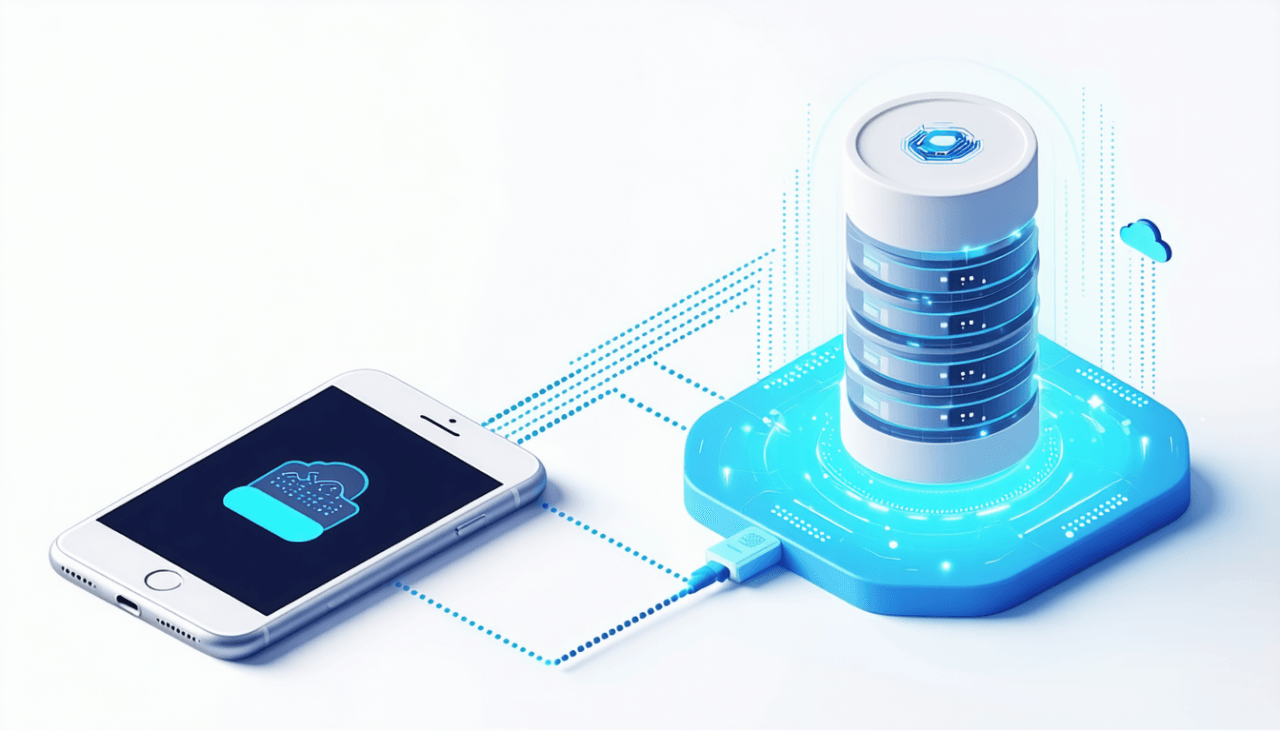
Firebase Cloud Messaging (FCM) acts as a universal translator and abstraction layer. Your backend server—or an automated script—sends a single, standardized API request to Firebase. Firebase then identifies the unique device token, determines the target operating system, formats the payload appropriately, and securely forwards it to either APNs or Google’s native delivery service. This abstraction saves hundreds of development hours and drastically reduces ongoing maintenance overhead for your engineering team.
Project Preparation and Initial Dependency Setup
To successfully implement this infrastructure, you need a functional React Native project. This guide focuses on the standard bare React Native workflow (using the React Native CLI), as it offers the maximum control over native modules required for advanced notification handling.
First, navigate to the Firebase Console in your web browser and create a new project. You will need to register both an iOS app and an Android app within this single Firebase project to ensure both platforms share the same database and cloud messaging credentials.
For the Android application registration, you will be prompted to provide your Android package name, which can be found in your AndroidManifest.xml file. Firebase will then generate a google-services.json file.
For the iOS application registration, you will provide your Apple Bundle Identifier, found in your Xcode project settings. Firebase will generate a GoogleService-Info.plist file. Download both of these configuration files and keep them secure, as they contain the necessary API keys and project identifiers to link your mobile application to your Firebase backend.
Next, open your terminal at the root of your React Native project and install the official React Native Firebase libraries. We need the core app module to initialize the connection, and the messaging module to handle the notifications:
Bash
npm install @react-native-firebase/app @react-native-firebase/messaging
Because these libraries rely heavily on native code bridging, you must execute the CocoaPods installation process for your iOS build. Navigate to your iOS directory and run the pod installation command:
Bash
cd ios && pod install --repo-update && cd ..
Deep Dive into Android Configuration
Android setup is generally more straightforward than iOS, but it requires precise modifications to your Gradle build files to ensure the Firebase plugins are properly injected during the compilation process.
First, take the google-services.json file you downloaded from the Firebase Console and place it directly inside the android/app/ directory of your React Native project.
Next, you must modify your project-level build file. Open android/build.gradle and add the Google Services classpath to your buildscript dependencies. This instructs the build system on how to read the JSON configuration file you just added:
Gradle
buildscript {
    dependencies {
        // Other dependencies...
        classpath 'com.google.gms:google-services:4.4.0'
    }
}
Following this, update your app-level build file located at android/app/build.gradle. You must apply the Google Services plugin by adding the following execution command at the very top of the file:
Gradle
apply plugin: 'com.android.application'
apply plugin: 'com.google.gms.google-services'
Handling Android Notification Permissions and Channels
Historically, Android applications were granted the ability to send push notifications immediately upon installation without prompting the user. However, starting with Android 13 (API level 33), Google introduced a major security update requiring explicit runtime permissions, aligning closer to Apple’s privacy model.
You must explicitly declare this permission in your manifest file. Open android/app/src/main/AndroidManifest.xml and add the POST_NOTIFICATIONS permission declaration within the manifest tags:
XML
<manifest xmlns:android="http://schemas.android.com/apk/res/android">
    <uses-permission android:name="android.permission.INTERNET" />
    <uses-permission android:name="android.permission.POST_NOTIFICATIONS" />

    <application>
        <meta-data
            android:name="com.google.firebase.messaging.default_notification_channel_id"
            android:value="high_importance_channel" />
        <meta-data
            android:name="com.google.firebase.messaging.default_notification_icon"
            android:resource="@mipmap/ic_notification_custom" />
        <meta-data
            android:name="com.google.firebase.messaging.default_notification_color"
            android:resource="@color/brand_primary" />
    </application>
</manifest>
Adding the default icon and color metadata prevents Android from displaying a featureless, generic grey square when a notification arrives, which is a very common and unprofessional visual bug. Furthermore, specifying a default channel ID ensures that your notifications are categorized correctly and can trigger sounds and vibrations.
Navigating the iOS Configuration Labyrinth
Configuring iOS is widely considered the most complex phase of implementing React Native push notifications Firebase solutions. Apple enforces strict security protocols to prevent malicious actors from spamming their devices. You must have an active Apple Developer Program membership, which costs approximately €99 annually, to generate the necessary cryptographic certificates.
The first step is establishing absolute trust between Firebase and Apple. In your Apple Developer account portal, navigate to the Certificates, Identifiers & Profiles section. You need to create an APNs Authentication Key. This modern approach replaces the legacy method of using separate, expiring .p12 certificates for development and production environments.
Generate a new key, ensure the “Apple Push Notifications service (APNs)” box is strictly checked, and download the resulting .p8 file. Take note of your Key ID and your overarching Apple Team ID.
Navigate back to your Firebase Console, access the Project Settings, and navigate to the Cloud Messaging tab. Scroll to the iOS application configuration and upload the .p8 file, inputting the Key ID and Team ID. Firebase is now legally authorized to communicate with APNs on your behalf.
Modifying Xcode Capabilities
Next, open your React Native iOS project in Xcode by opening the .xcworkspace file. You must explicitly inform Apple that your application binary intends to use push notifications.
Select your main project target and navigate to the “Signing & Capabilities” tab. Click the “+ Capability” button and add “Push Notifications”.
Click the “+ Capability” button again and add “Background Modes”. Under the Background Modes section, you must check the box for “Remote notifications”. This specific checkbox is critical; it allows your application to wake up in the background and process silent data payloads even when the application is not actively running on the user’s screen.
Finally, drag and drop the GoogleService-Info.plist file you downloaded from Firebase into the root of your Xcode project navigator. Ensure the “Copy items if needed” checkbox is selected and that the file is strictly linked to your main application build target.
Initializing Firebase Natively in AppDelegate
To bootstrap Firebase when your iOS app launches, you must modify your AppDelegate.mm (or AppDelegate.m) file. Import the Firebase module at the very top of the file:
Objective-C
#import <Firebase.h>
Then, locate the didFinishLaunchingWithOptions lifecycle method and insert the Firebase configuration command before the return statement. This ensures that the native Firebase SDK initializes the moment the application process begins, long before the React Native JavaScript bundle has finished loading:
Objective-C
- (BOOL)application:(UIApplication *)application didFinishLaunchingWithOptions:(NSDictionary *)launchOptions
{
  [FIRApp configure];
  // Existing React Native boilerplate continues here...
  return YES;
}
Executing the JavaScript Implementation: Permissions
With the native environments successfully prepared across both platforms, we transition to the JavaScript layer. The first interactive step in the user journey is requesting permission to send them notifications.
Because both iOS and modern Android enforce a strict opt-in policy, requesting permission is a delicate user experience challenge. If you trigger the system permission dialog the exact second they open your app for the first time, they will likely deny the request out of reflex. It is highly recommended to wait until the user completes a meaningful action—such as placing an order, setting a reminder, creating an account, or enabling a specific feature—before asking for notification access.
Create a dedicated utility file to handle your messaging logic. Using the React Native Firebase messaging module, you can write an asynchronous function to request authorization:

JavaScript
import messaging from '@react-native-firebase/messaging';
import { Platform, Alert } from 'react-native';

export async function requestUserPermission() {
  const authStatus = await messaging().requestPermission({
    alert: true,
    announcement: false,
    badge: true,
    carPlay: false,
    provisional: false,
    sound: true,
  });

  const enabled =
    authStatus === messaging.AuthorizationStatus.AUTHORIZED ||
    authStatus === messaging.AuthorizationStatus.PROVISIONAL;

  if (enabled) {
    console.log('Authorization status:', authStatus);
    await retrieveAndStoreDeviceToken();
    return true;
  } else {
    console.log('User proactively denied notification permissions');
    return false;
  }
}
Managing Device Tokens Effectively
If the user grants permission, your immediate next step is to retrieve the FCM device token. This alphanumeric string is the unique routing address for this specific installation of your application on this specific device. When your backend wants to alert a specific user, it targets this exact token.
JavaScript
export async function retrieveAndStoreDeviceToken() {
  try {
    const fcmToken = await messaging().getToken();
    if (fcmToken) {
      console.log('Device FCM Token:', fcmToken);
      // Execute an API call to securely store this token in your backend database
      // e.g., await myBackendApi.post('/users/update-push-token', { token: fcmToken });
    }
  } catch (error) {
    console.error('Critical error fetching FCM token:', error);
  }
}
It is incredibly important to understand that FCM tokens are not permanent. They will be invalidated and refreshed if the user clears the application data, uninstalls and reinstalls the app, restores their device from a cloud backup, or if Google’s algorithms determine the token has gone stale for security reasons.
Your application must actively listen for the onTokenRefresh event and immediately synchronize the new token with your backend database. Failing to maintain an accurate token registry results in an accumulation of dead endpoints, massive delivery failures, and skewed marketing analytics.
JavaScript
messaging().onTokenRefresh(newToken => {
  console.log('FCM Token was refreshed by the system:', newToken);
  // Execute an API call to update the token in your backend database
  // e.g., await myBackendApi.post('/users/refresh-push-token', { token: newToken });
});
Handling Application States: Foreground, Background, and Quit
A major developer headache when implementing cross-platform notifications is managing the application’s lifecycle states. An application can exist in three distinct states, and the operating system handles incoming payloads drastically differently for each.
Managing the Foreground State
The Foreground state means the user is actively looking at your application, and the screen is unlocked. By default, both iOS and Android will automatically suppress the visual drop-down notification banner when the app is in the foreground. The operating systems assume that an intrusive system banner would disrupt the user’s current workflow.
If you want to show an alert to an active user, you must actively listen for the message and render a custom User Interface component. Inside your main application component (typically App.js or App.tsx), set up the foreground listener inside a useEffect hook:
JavaScript
import React, { useEffect } from 'react';
import { Alert } from 'react-native';
import messaging from '@react-native-firebase/messaging';

const App = () => {
  useEffect(() => {
    const unsubscribe = messaging().onMessage(async remoteMessage => {
      console.log('A new FCM message arrived in the foreground!', remoteMessage);

      const notificationTitle = remoteMessage.notification?.title || 'New Alert';
      const notificationBody = remoteMessage.notification?.body || 'You have a new message waiting.';

      // Render a custom in-app alert, trigger a toast notification, or update UI state
      Alert.alert(notificationTitle, notificationBody);
    });

    // Clean up the listener gracefully on component unmount
    return unsubscribe;
  }, []);

  return (
    // Your application's navigation container and UI components
    <></>
  );
};

export default App;
Managing the Background and Quit States
The Background state occurs when the application is minimized, and the user is looking at another app or the home screen. The Quit (or Terminated) state occurs when the user has explicitly swiped the application away from their multitasking view, completely killing the process.
In both of these scenarios, the operating system takes over. FCM hands the notification payload directly to Android or iOS, which automatically displays the familiar visual banner in the device’s notification center based on the contents of the payload.
However, you frequently need your React Native JavaScript code to execute silently when a background message arrives—perhaps to pre-fetch large images, synchronize a local SQLite database, or update an offline cache before the user even opens the app. To achieve this, you must register a headless background message handler.
Crucially, this background handler must be registered completely outside of your React component lifecycle. It is typically placed at the very top of your index.js file, strictly before the AppRegistry.registerComponent call:
JavaScript
import { AppRegistry } from 'react-native';
import App from './App';
import { name as appName } from './app.json';
import messaging from '@react-native-firebase/messaging';

// Register background handler early in the execution phase
messaging().setBackgroundMessageHandler(async remoteMessage => {
  console.log('Message payload handled in the background!', remoteMessage);

  // Execute background tasks safely here.
  // Do NOT attempt to update visual UI components from this headless task.
  // Example: await database.syncOfflineToOnline();
});

AppRegistry.registerComponent(appName, () => App);
Deep Linking: Routing Users Upon Interaction
Displaying a notification on the lock screen is merely the first half of the interaction. The true business value is unlocked when the user taps that notification.
If a travel application sends an alert that a specific flight to Rome has dropped in price to €85, tapping the notification should route the user directly to that specific flight booking screen. Dumping the user onto the generic application home screen creates massive friction, frustrates the user, and destroys conversion rates.
Handling these interactions requires listening for the exact moment the application is opened via a notification tap. Firebase provides two distinct methods for this, depending on the state of the app exactly prior to the tap.
If the app was resting in the background and is brought to the foreground by the user tap, you must utilize the onNotificationOpenedApp listener:
JavaScript
useEffect(() => {
  const unsubscribe = messaging().onNotificationOpenedApp(remoteMessage => {
    console.log('Notification caused app to open from background state:', remoteMessage.notification);

    // Extract custom routing data from the payload
    const targetScreen = remoteMessage.data?.routing_screen;
    const targetId = remoteMessage.data?.item_id;

    if (targetScreen && targetId) {
      // Execute your specific navigation logic here
      // Example using React Navigation:
      // navigation.navigate(targetScreen, { id: targetId });
    }
  });

  return unsubscribe;
}, []);
Conversely, if the app was completely quit and the tap caused the app to launch from a cold start, the previous listener will not fire in time because the app was not in memory. You must instead check getInitialNotification during your application’s startup sequence:
JavaScript
useEffect(() => {
  messaging()
    .getInitialNotification()
    .then(remoteMessage => {
      if (remoteMessage) {
        console.log('Notification caused app to open from quit state:', remoteMessage.notification);

        const targetScreen = remoteMessage.data?.routing_screen;
        const targetId = remoteMessage.data?.item_id;

        if (targetScreen) {
          // Execute cold-start navigation logic
          // Note: You may need to defer navigation until your router is fully mounted
        }
      }
    });
}, []);
By passing a custom data dictionary within your push notification payload from your server, you can securely route users to highly specific views, massively increasing your application’s user satisfaction and revenue generation.
Data-Only Payloads vs. Notification Payloads
A critical architectural concept when working with Firebase is understanding the strict distinction between Notification messages and Data messages. Misunderstanding this difference will inevitably cost you hours of debugging.
Notification Messages contain a predefined set of strict keys (such as title, body, and image). When the application is in the background or quit state, the operating system intercepts this specific payload and automatically builds the visual notification alert on the lock screen. The React Native application itself never wakes up to process the data until the user physically taps the visual notification.
Data Messages, conversely, contain only custom key-value pairs that you define (e.g., {"transaction_id": "8932", "status": "cleared"}). The operating system does not automatically create a visual alert for Data messages. Instead, it wakes up your application in the background and delivers the payload directly to your headless setBackgroundMessageHandler.
This is incredibly useful for executing “silent pushes.” For instance, if a business uses a secure messaging application, a silent data push can wake up the app, instruct it to securely download the latest encrypted messages from the server, and only then generate a local notification using a third-party library. This ensures that when the user taps the alert, the app opens instantly with the data already fully populated, providing a completely seamless user experience devoid of loading spinners.
Supercharging Notifications with AI and Python Automations
While manually testing notifications via the Firebase Console web interface is useful for initial debugging, a production environment requires automated, programmatic triggers. To send notifications at scale, you need a robust backend infrastructure.
At Tool1.app, our engineering teams frequently design custom backend architectures and Python automations that intelligently trigger FCM notifications based on complex business logic, real-time database events, and predictive Large Language Models (LLMs). Using the official Firebase Admin SDK, your server can securely dispatch payloads directly to Google’s infrastructure.
Imagine a scenario where a Python microservice monitors a subscription database. It detects that a user’s premium trial is expiring in 24 hours. Instead of sending a generic, static message, an integrated AI model analyzes the user’s specific usage patterns during the trial to generate a highly personalized message, offering them to retain their premium status for €15 a month.
First, you install the Firebase Admin SDK in your server’s Python environment:
Bash
pip install firebase-admin
Next, you must generate a new Private Key from the Firebase Console (located under Project Settings > Service Accounts) and save the resulting JSON credentials file securely to your server.
Here is a robust Python script demonstrating how to construct and dispatch a highly targeted push notification:
Python
import firebase_admin
from firebase_admin import credentials, messaging

# Initialize the Firebase Admin SDK securely
cred = credentials.Certificate("/secure/path/to/firebase-adminsdk.json")
firebase_admin.initialize_app(cred)

def send_personalized_renewal_push(device_token, user_first_name, renewal_price, ai_generated_body):
    """
    Constructs a comprehensive notification payload and dispatches it via FCM.
    """
    message = messaging.Message(
        notification=messaging.Notification(
            title="Keep Your Premium Access!",
            body=ai_generated_body
        ),
        data={
            "routing_screen": "SubscriptionCheckoutScreen",
            "campaign_id": "trial_expiry_24h",
            "price_point": str(renewal_price)
        },
        token=device_token,

        # Apply specific Apple APNs configurations for background wake-ups
        apns=messaging.APNSConfig(
            payload=messaging.APNSPayload(
                aps=messaging.Aps(badge=1, sound="default", content_available=True)
            )
        ),

        # Apply specific Android notification configurations
        android=messaging.AndroidConfig(
            priority="high",
            notification=messaging.AndroidNotification(
                sound="default",
                color="#FF5733",
                channel_id="billing_alerts"
            )
        )
    )

    try:
        # Dispatch the message to Firebase Cloud Messaging
        response = messaging.send(message)
        print(f"Successfully dispatched message. Message ID: {response}")
        return True
    except Exception as error:
        print(f"Critical failure sending notification: {error}")
        # Logic to handle unregistered tokens should be implemented here
        return False

# Example execution within an automated cron job
target_user_token = "fcm_device_token_string_abc123..."
dynamic_copy = "Elena, you've saved 12 hours this week using our tools! Renew now for only €15/month."
send_personalized_renewal_push(target_user_token, "Elena", 15, dynamic_copy)
This level of backend automation bridges the gap between intelligent data processing and direct user communication. When we design custom software and AI solutions at Tool1.app, we ensure that an automated Python backend continuously analyzes purchasing habits, calculates lifetime value, and sends highly personalized, targeted notifications that maximize your operational efficiency without requiring manual human intervention.
Overcoming Common Developer Headaches
Even with meticulous attention to detail and a perfect tutorial, environmental differences and platform updates can cause severe complications. If you are experiencing drop-offs or silent failures, here are the most common pitfalls and their immediate solutions:
iOS Fails to Receive Background Notifications
If your foreground notifications work flawlessly on Apple devices, but background notifications simply never appear, the issue almost always lies in your Xcode configurations or your server payload structure. Ensure you have explicitly enabled the “Background Modes” capability in Xcode and checked “Remote notifications.” Furthermore, if you are sending a Data-only message to iOS to wake it up silently in the background, your backend Python payload must include the content-available: 1 flag (which maps to content_available=True in Python) within the APNs configuration block. Without this specific flag, iOS will aggressively throttle or completely ignore the silent push to preserve battery life.
Android Notifications Lack Sound or Display Incorrect Icons
Starting with Android 8.0 (Oreo), all notifications must be assigned to a specific Notification Channel. If you simply send a payload from your backend without specifying a channel, or if the channel does not exist on the user’s device, the notification may fail to trigger a sound, vibration, or heads-up pop-up alert. You must ensure you execute native code to create a channel upon application launch, and your backend must specify that exact channel_id within the Android configuration block of the Firebase payload. Additionally, always provide a transparent silhouette PNG for your icon metadata, or Android will render a generic grey square.
Aggressive Battery Optimization Kills Background Tasks
A frequent issue on Android devices stems from aggressive battery optimization protocols employed by hardware manufacturers like Samsung, Xiaomi, or Huawei. These custom Android OS layers frequently kill background processes entirely, preventing the FCM service from waking up the React Native application. Educating your users on how to whitelist your application from battery optimization settings in their system preferences is often a necessary step for applications that rely on mission-critical, time-sensitive alerts (such as medical reminders or financial trading alerts). Setting the Android message priority to “high” in your backend payload also helps bypass some of these restrictions.
Transforming Your Application Strategy
Successfully implementing cross-platform notifications requires carefully navigating a highly complex web of Apple cryptography certificates, Google native services, client-side lifecycle management, and intelligent backend database synchronization. However, the commercial rewards of executing this architecture correctly are absolutely immense.
By establishing a direct, real-time line of communication to your users’ home screens, you fundamentally transform your application from a passive utility into an active, engaging daily tool. You protect your customer acquisition investments, recover lost revenue from abandoned workflows, and foster a loyal, recurring user base that continuously interacts with your digital ecosystem.
Need to re-engage your app users? Let Tool1.app build robust notification systems for your mobile app
Implementing native device configurations, managing secure APNs keys, handling React Native state lifecycles, and writing backend Python automations for intelligent notifications can rapidly drain your internal engineering resources and severely delay your product roadmap. At Tool1.app, we engineer end-to-end custom software solutions, seamless mobile experiences, and advanced AI automations tailored precisely to maximize your business efficiency. Stop losing hard-earned users to silent, inactive applications. Contact Tool1.app today for a comprehensive technical consultation, and let our experts integrate reliable, high-converting notification architectures that keep your audience deeply engaged and your business consistently growing.





Leave a Reply
Want to join the discussion?Feel free to contribute!
Join the Discussion
To prevent spam and maintain a high-quality community, please log in or register to post a comment.